Welcome to Williams Online Portal Guide
In this guide, we’ll show you how to navigate your Learning Management System (LMS) and how to access your learning and assessment content.
Logging in
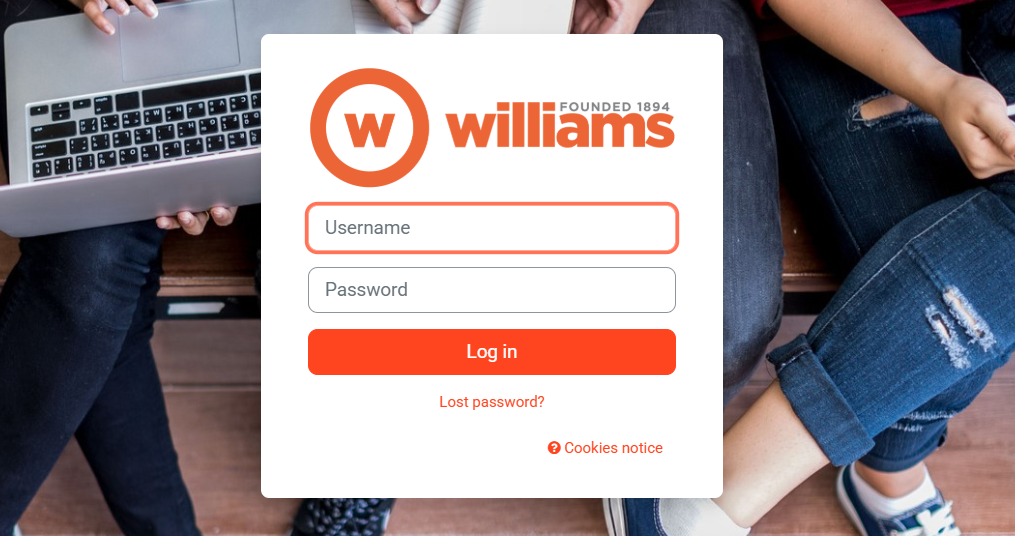
Once we have enrolled you onto the system, you will receive an email with a link to your LMS, a username and password instructions.
If you have lost the link click here or scan the QR code.
Your Dashboard
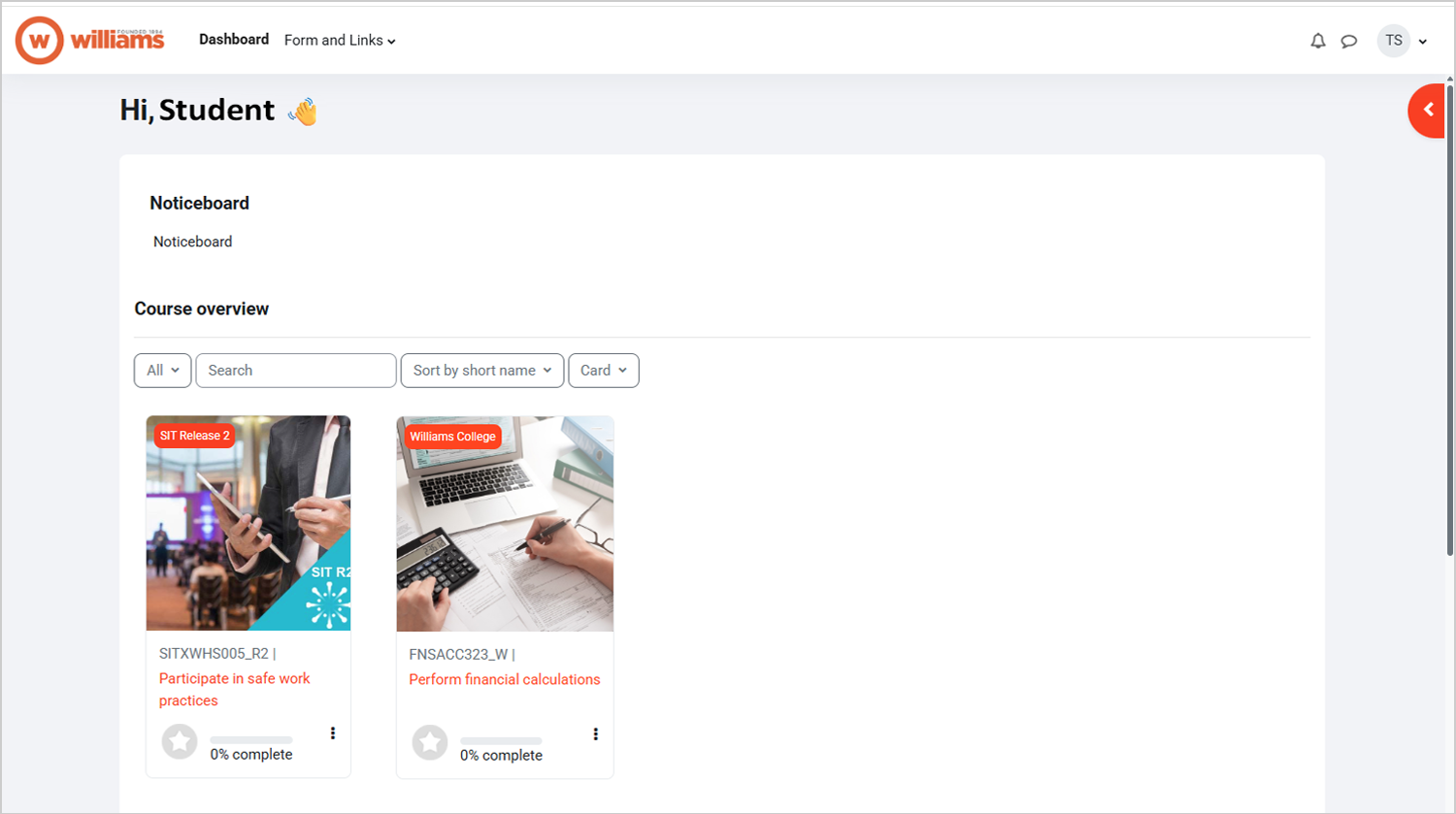
Once you are enrolled, you should receive your login details via email. When you first log in, you’re taken to your dashboard, this is where you will find the current subject units that have been assigned to you. Your progress through the assessments in each unit is shown as a percentage, and the star will turn gold once you’ve been marked as competent in that unit. Click on the unit’s title to enter the unit.
Viewing the unit
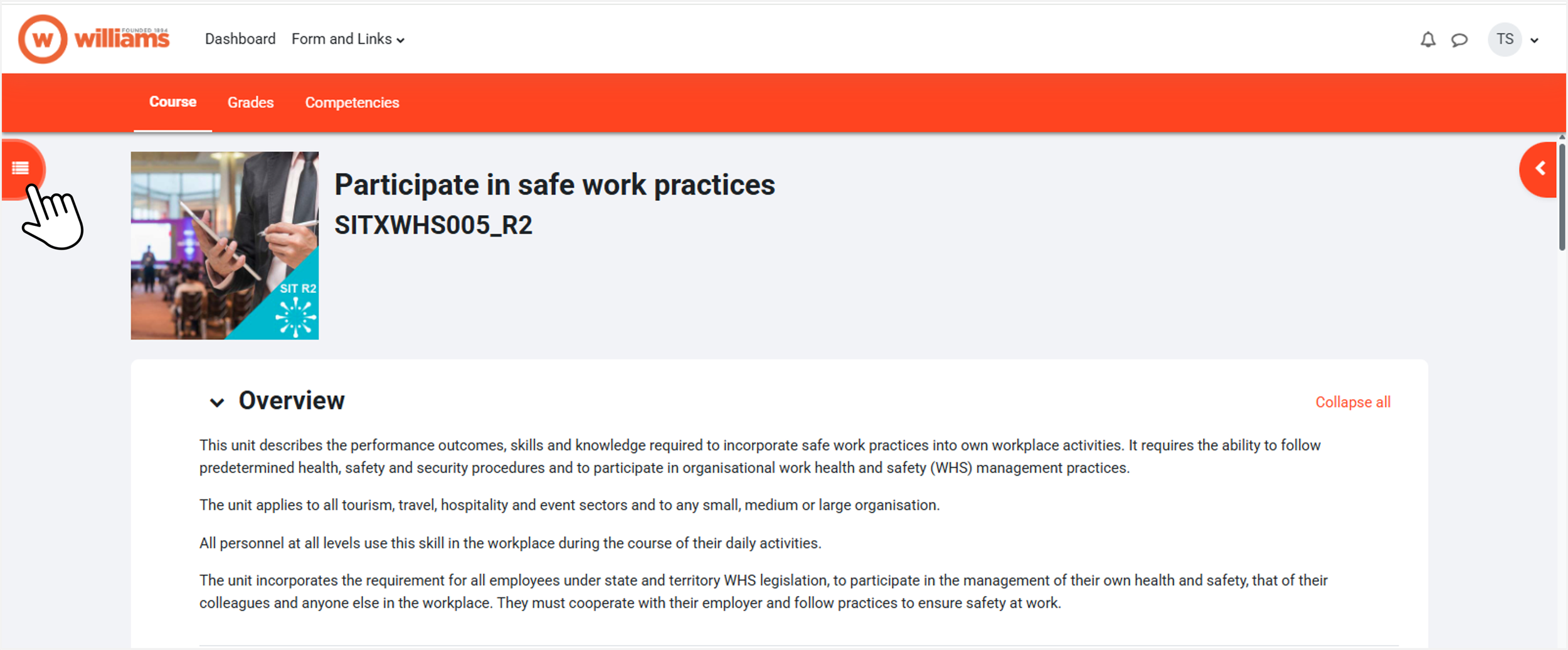
Once you’re in the unit, you can expand the left pane to see a list of contents and quickly navigate to different sections.
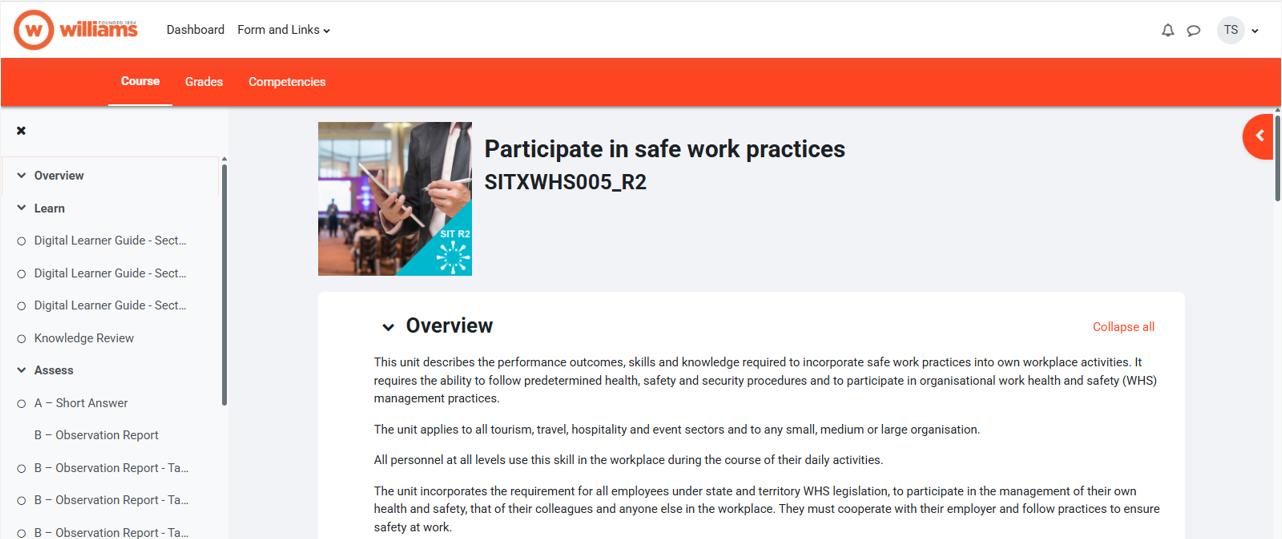
The Learn section
The Learn section will contain learning material and activities to further develop your knowledge. The digital learner guide will provide most of your learning content, either in a multimedia or eBook format.
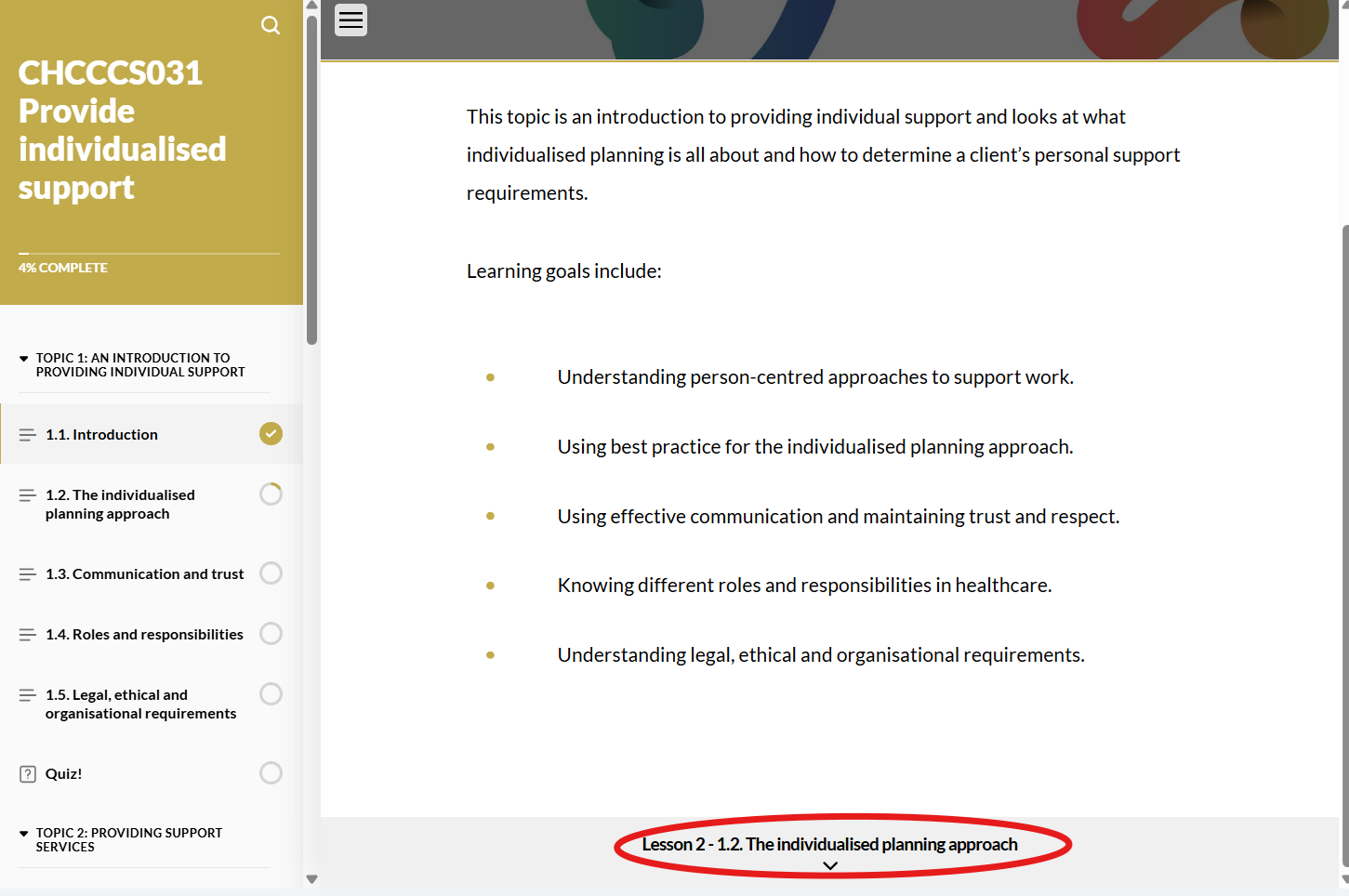
Read through the learning content, and progress to the next section by clicking the link at the bottom of each page.
The multimedia learning content is interactive, click through slideshows and tiles to uncover more information.
Pop-ups
Digital Learner Guides open in a separate window. You may need to check your browser’s notifications if it has blocked these as pop-ups.
Quizzes
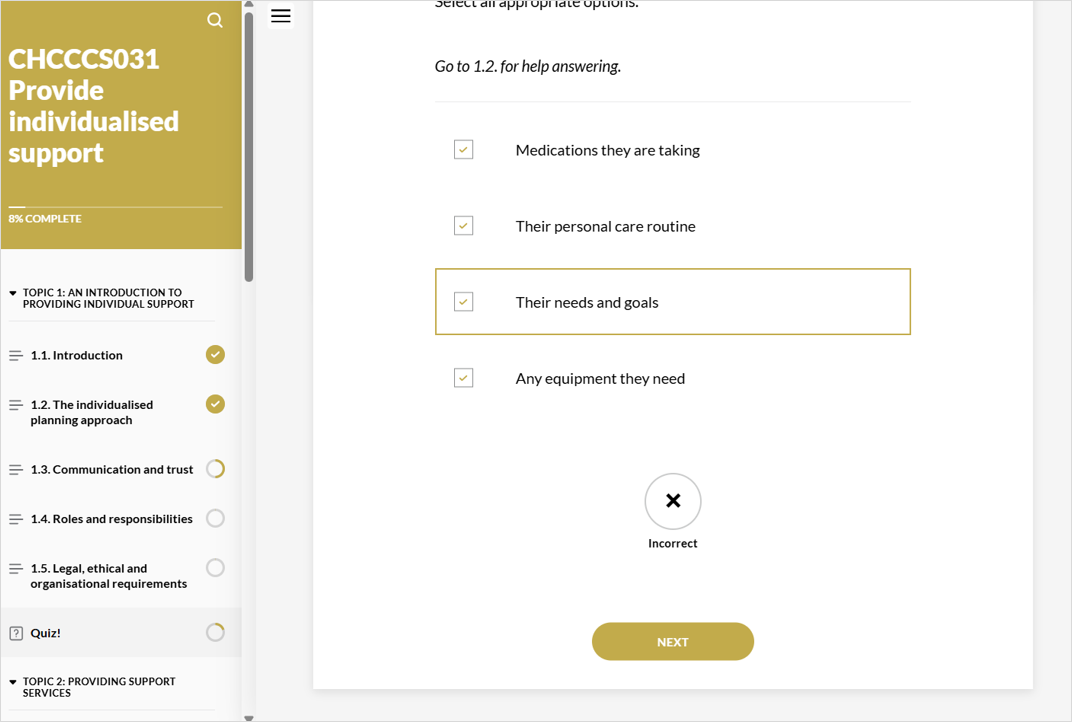
Some units have quizzes as part of each section. These quizzes are marked automatically and are there to help you make sure you understood the learning materials.
Navigation
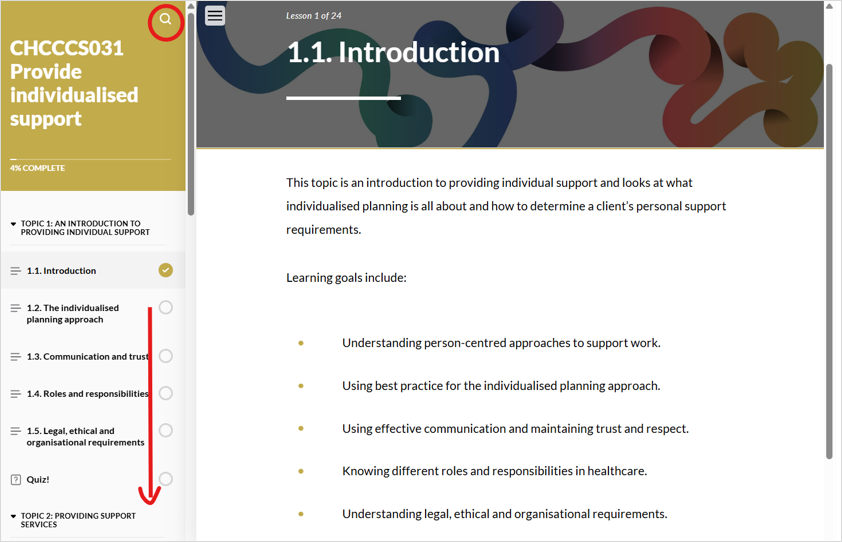
In the left-hand pane, you can scroll to navigate to later sections, or search for keywords using the magnifying glass icon.
Self-study and Knowledge Review activities
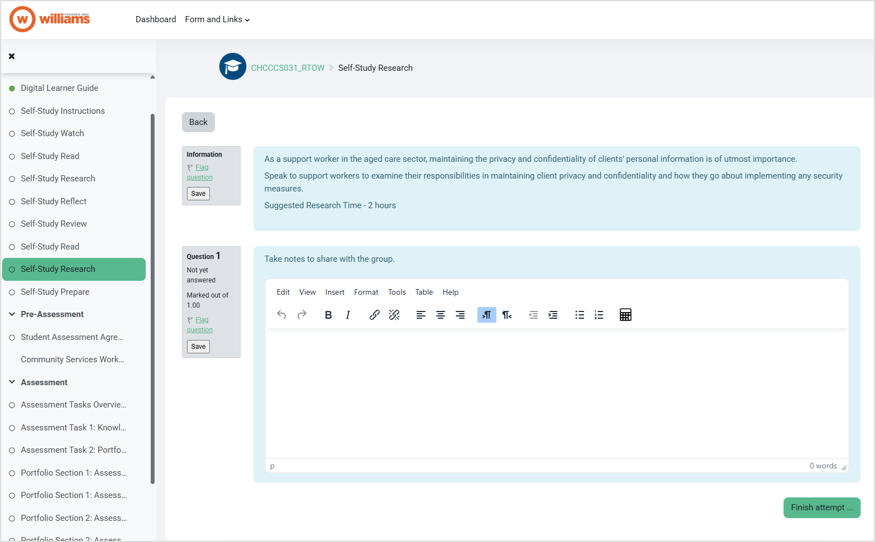
The Learn section will typically have self-study or knowledge review activities. Knowledge Reviews are short, multiple-choice quizzes that are automatically graded. Self-study activities come in many different styles. Click on them and click “Attempt quiz” to see more instructions. There will be a spot to write your notes if that is required.
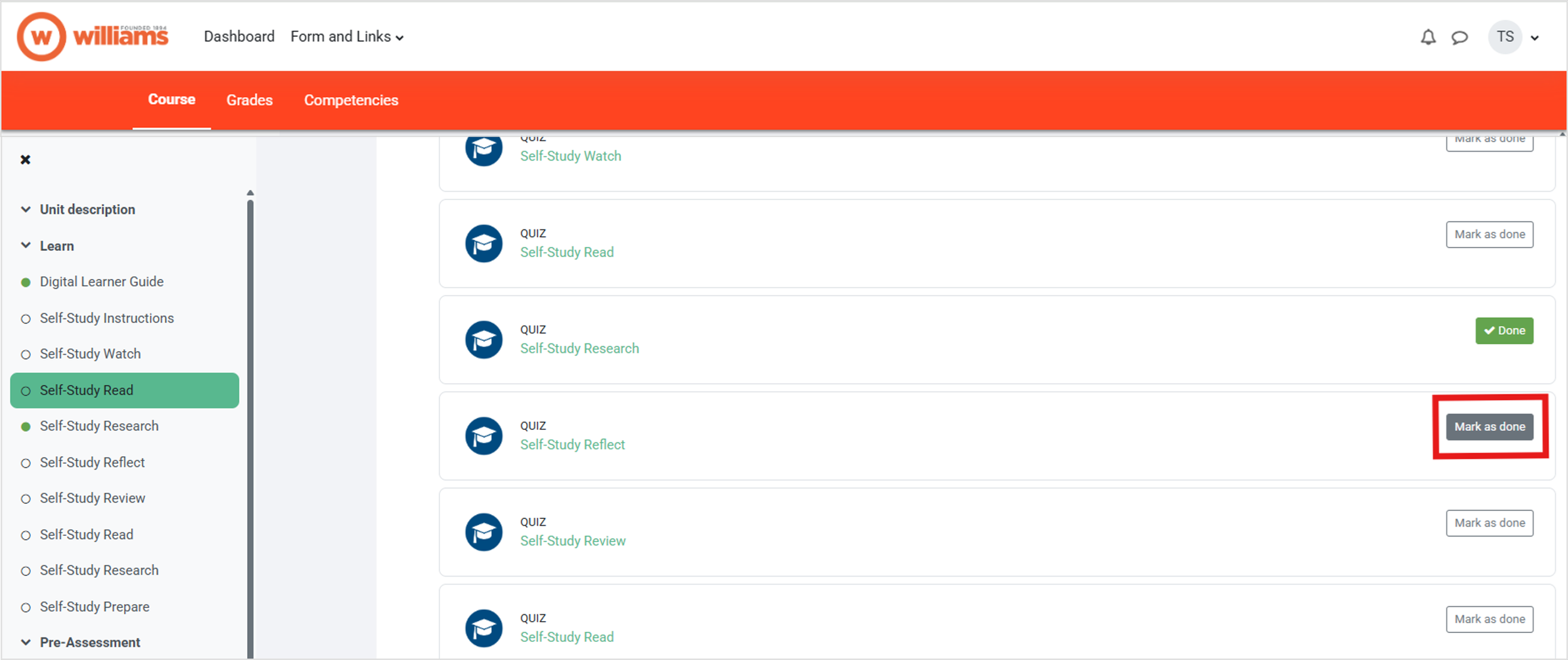
Once you’ve completed a self-study task, you can mark it as done from the course page to keep track of your progress.
Pre-Assessment section
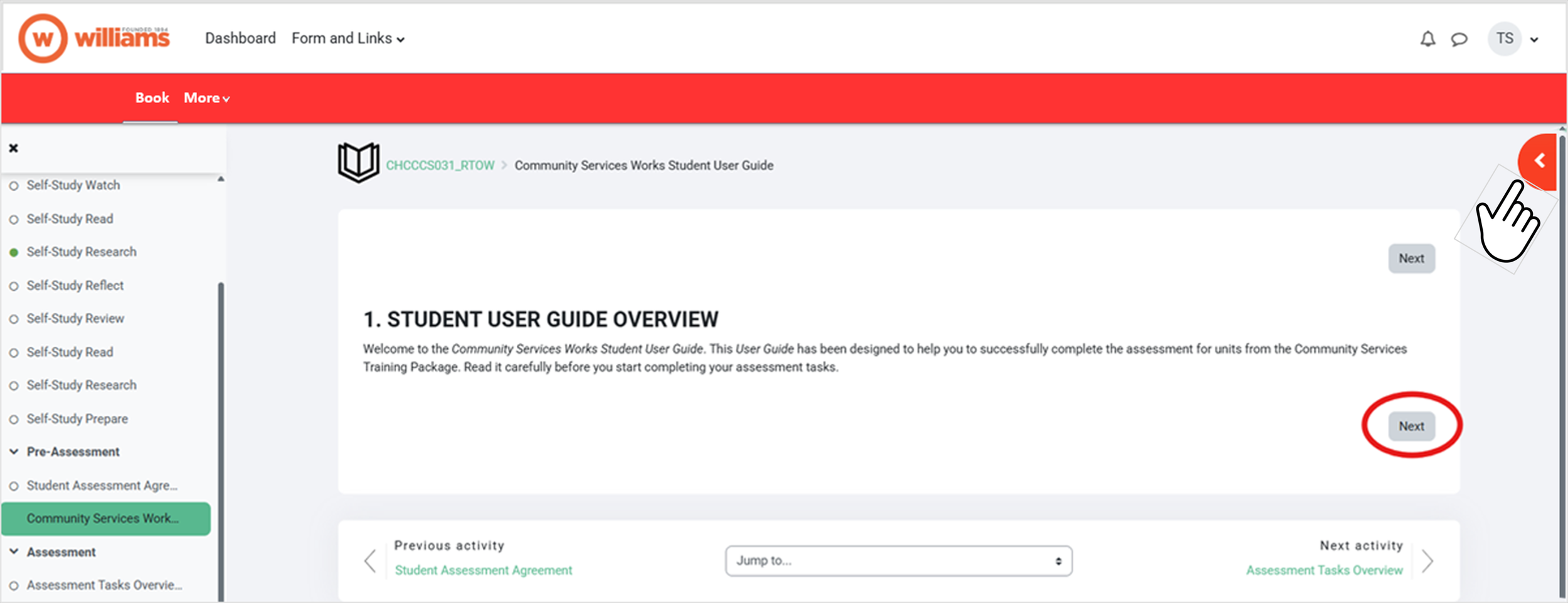
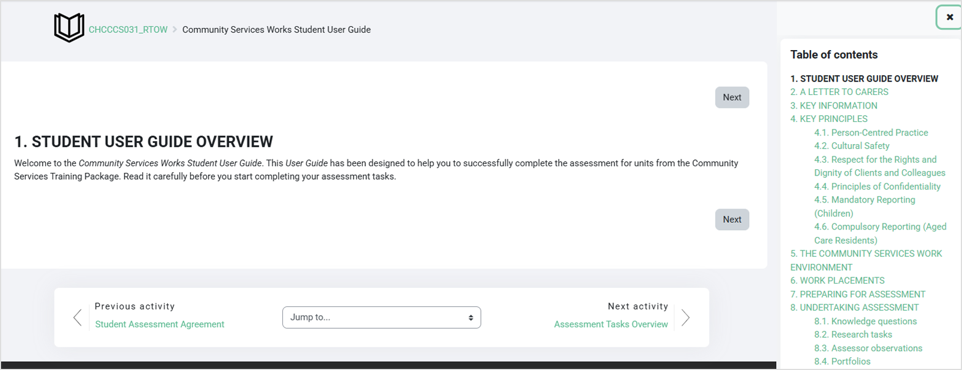
Some units will have a pre-assessment section. These will contain a student assessment agreement. If you require any adjustments to your assessment delivery, please talk to your trainer. This section will also contain a student user guide, which will be the same guide for all the units you take. Information in the LMS is often presented in “books”, such as in your student user guide. To navigate books, you can click the Next button to go to the next page, or expand the right pane to see a table of contents.
The Assessment section
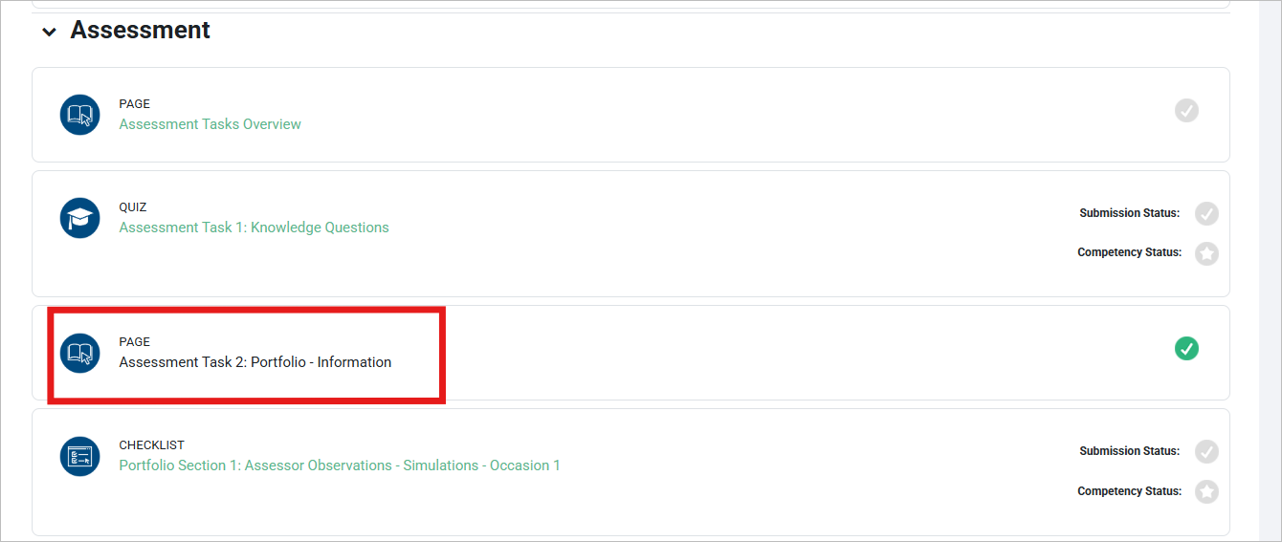
The assessment section contains activities that are graded by your assessor and contribute to your competency in the unit. Instructions on what you will be assessed on can be found in “Information” pages and books.
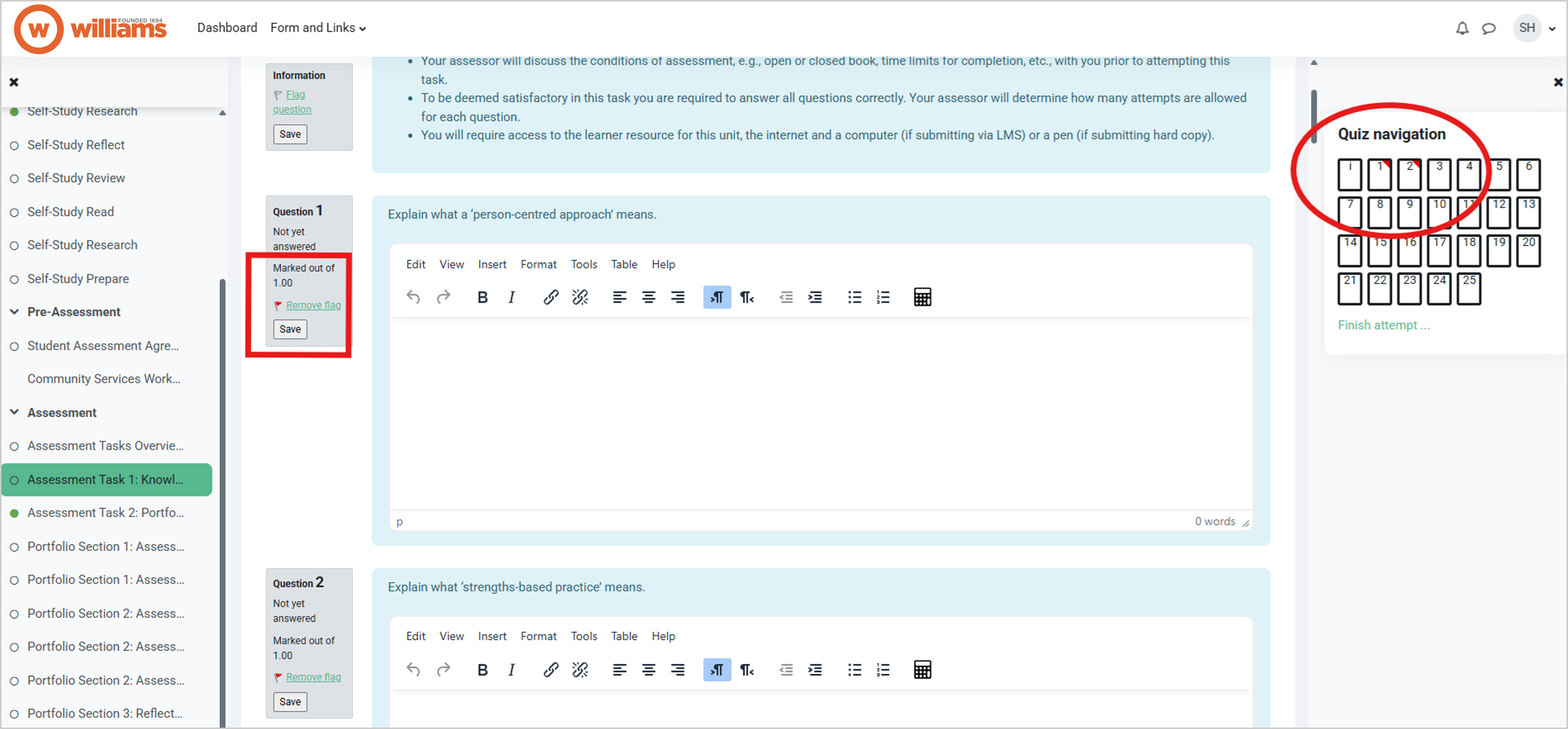
Quiz activities have questions and text boxes for your answers. You can navigate between questions by expanding the right-hand pane. Make sure to click the save button after you answer each question, this won’t submit your entire attempt. Clicking “Flag question” will put a reminder next to it in the quiz navigation, in case you need to remember a question number if you have questions for your trainer.
If you need to leave and come back, make sure you’ve clicked save on each question and close the quiz tab. We do not recommend leaving a quiz tab open for extended periods of time where your device may go to sleep, as you may lose some of your answers.
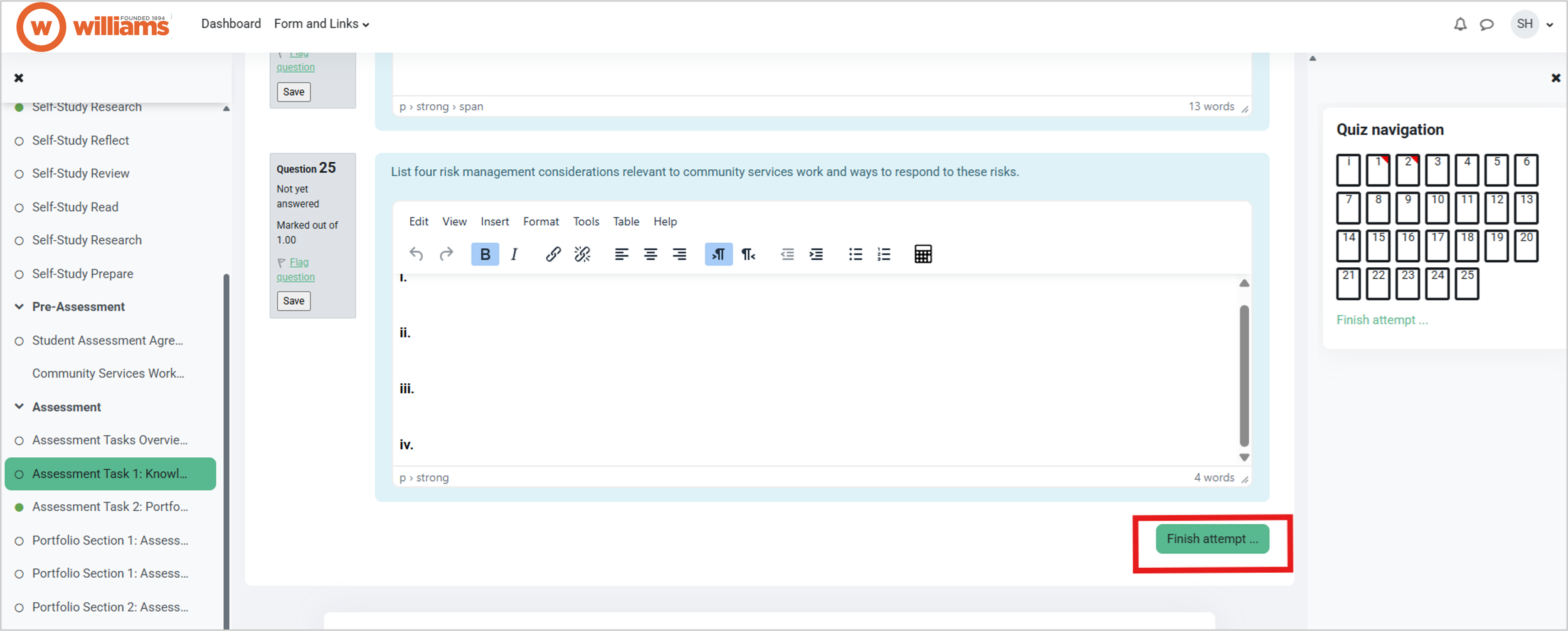
Once you’ve answered all the questions, you can click the Finish attempt button at the bottom.
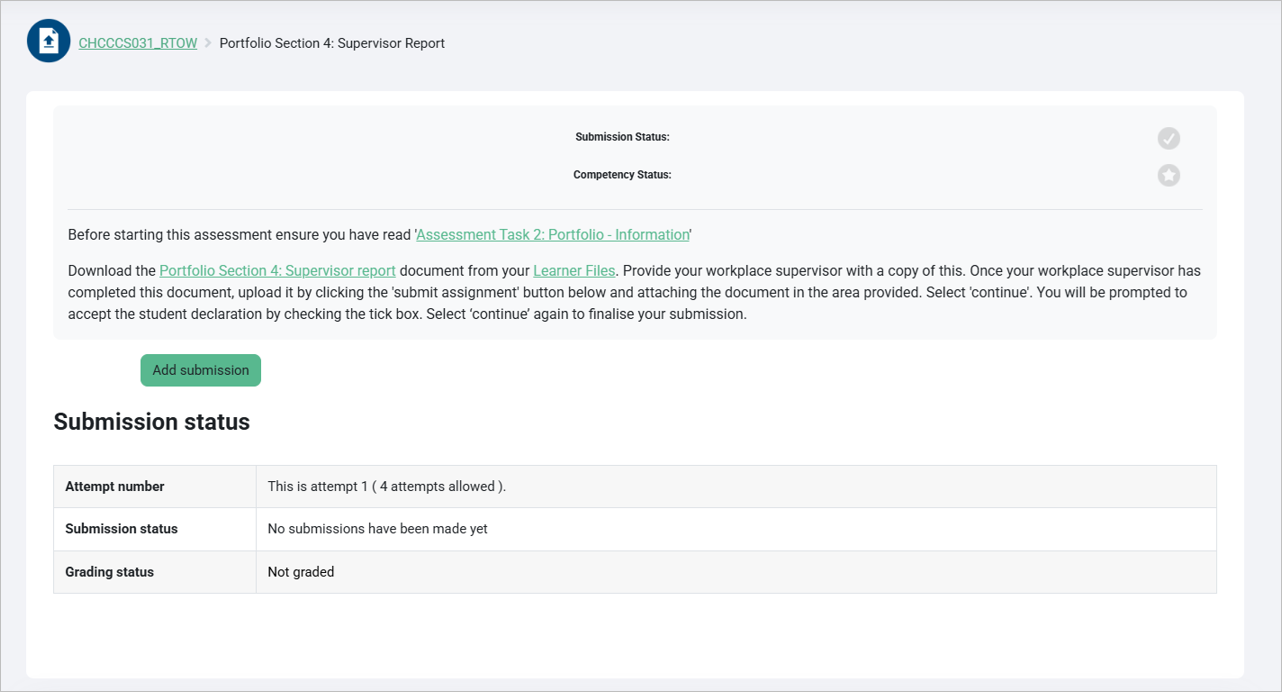
Assignment activities require you to upload documents. They may ask you to create these yourself or use a template. Templates are typically found in the “Learner files” folder, which is at the very bottom of each unit page.
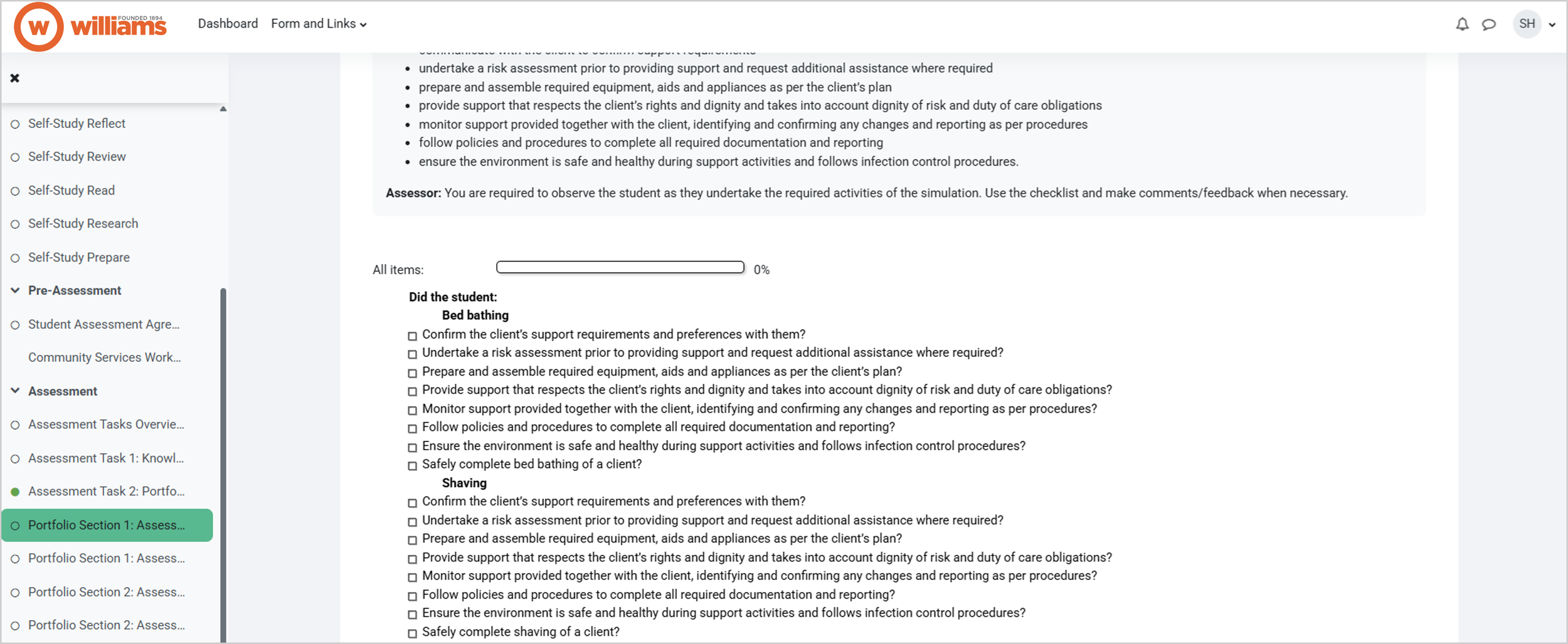
Checklists are filled out by your assessor, where they will mark off if you’ve satisfactorily completed specific assessment criteria. You do not need to fill out anything within a checklist, but you can review what your assessor will be judging you on. More information on the tasks you must carry out is generally located in the assessment task information.